CygNet Host Manager Utility
The CygNet Host Manager utility (CHostMgr.exe) is the primary CygNet utility for managing services and domains on a host server. The utility controls the Remote Service Manager (RSM) service for each domain(s), identifies redundant RSMs running on multiple domains, and each RSM respectively starts and stops all of the services listed in its database, including the Address Resolution Service (ARS).
CygNet Host Manager also provides methods to modify RSM settings (location, Domain ID, run type, start up type, and log on account), change network settings (default Domain ID, ARS address), change start-up options (start all RSM services when starting Host Manager, start up with a timed delay, hide the Host Manager, and logging and tray balloon notifications setting), select service IP address, configure RUDP fragmentation settings, and perform host activation. The utility can be used if the services are running as either a system service or a user process.
|
| CygNet Host Manager Utility
|
To Start CygNet Host Manager
CygNet Host Manager is stored in the CygNet\Utilities directory (CHostMgr.exe) on the host server. The CygNet services setup program adds a CygNet Host Manager shortcut to the Start menu, as well as to the Startup group.
- Click Start > CygNet Host Manager to start the utility.
When CygNet Host Manager is running, it shows as a minimized icon in the system tray. To maximize the utility, double-click the icon.

CygNet Host Manager does not need to be running while services are running. The following CygNet Host Manager icon color variations provide information at a glance about the state of the services.
|
 Green Green
|
Services are running
|
|
 Red Red
|
Services are stopped
When using CygNet Host Manager to control more than one set of services, if one of the service sets is stopped, the system tray icon displays in red
|
|
 Yellow Yellow
 Gray Gray
Green
|
Services are changing state
- While changing state from running to stopped, the system tray icon displays in alternating yellow and gray
- While changing state from stopped to running, the system tray icon displays in alternating gray and green
|
To Exit CygNet Host Manager
To exit CygNet Host Manager, do one of the following.
- From the task bar, right-click the CygNet Host Manager icon to access menu options and then click Close window.
- From the CygNet Host Manager window, click the File tab to access menu options and then click Exit CygNet Host Manager.
Exiting the CygNet Host Manager utility does not affect service operation status.
User Interface
The following table describes the user interface and the many options available from this utility.
|
Menu bar
|
The following menu options are contained in the File, View, Properties, and Help menus.
File Menu
- Start All Services — click to start a set of services
- Stop All Services — click to stop a set of services
- Hide — click to hide the utility window, and remove it from the taskbar
- Exit CygNet Host Manager — click to close the utility; services will continue to run even if CygNet Host Manager is closed
View Menu
- Status Bar — click to show/hide the status bar
- Refresh (or F5) — click to update the list of RSM configurations
Properties Menu
- Network Settings — click to access the Add New Domain Details dialog box to configure network settings such as the default Domain ID for the ARS running on the host server, and to specify Last, Preferred, and Forced ARS addresses
- Startup Options — click to access the CygNet Host Manager Properties dialog box to configure startup options that determine if RSM services should automatically start when CygNet Host Manager starts, to set a delay timer, and to select/clear logging and other behavior options
- Service Address — click to access the CygNet Service Address Selector dialog box to configure the service IP address to which the ARS binds
- Advanced Network Settings — click to access the Client and Server Advanced Network Settings dialog box to configure RUDP fragment sizes
Help Menu
- Displays an About CygNet Host Manager dialog box to view application information.
Available information includes the following:
- The application name, version, and release date
- Copyright information
- The CygNet Software website address, including a hyperlink to the website
- The log file location, including a hyperlink to the log file
- The location of the application's file executable
In addition to information about the application, the About box includes the following buttons:
- Client Settings — opens the Client Settings dialog box to view and modify client log settings for the application on an ad hoc basis. See Client Log Settings in the Logging section for more information.
- Diagnostics — access the following options for additional analysis from the drop-down menu:
- Loaded Modules — use this option to view and search file information for modules loaded in your system. Double-click any result row to view properties for that module. See Loaded Modules for more information.
- Gather Logs — accesses the Windows file directory where the open log files are located. Double-click to select and view an application log file.
- User Local Crash Dumps — Local crash dumps are not enabled. See Generating Crash Dumps for more information.
- Close — click to close the About box.
|
|
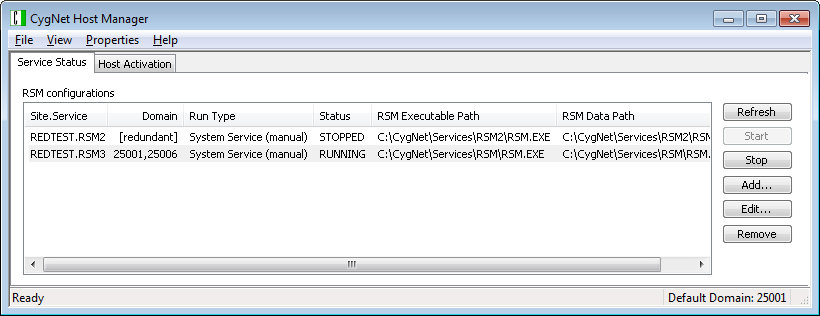
Service Status page
|
The Service Status page lists all RSM services configured for this host and provides access to the following buttons and context menu options.
Columns
- Site.Service — the site and service name for each RSM.
- Domain — the domain(s) where each RSM is running.
- Run Type — indicated whether the RSM is running as a System Service or a User Process.
- Status — the control status for each RSM. Possible values are RUNNING, STARTING, STOPPING, or STOPPED.
- RSM Executable Path — the directory path on the server where the RSM.exe file is located.
- RSM Data Path — the directory path where the data file is located. This may be different from the location of the executable.
Buttons
- Refresh (or F5) — click to update the RSM configurations
- Start — click to start the selected set of services
- Stop — click to stop the selected set of services
- Add — click to access the CygNet Remote Service Manager Host Settings dialog box to add an RSM configuration to CygNet Host Manager
- Edit — click to access the CygNet Remote Service Manager Host Settings dialog box to Edit the properties of a selected RSM
- Remove — click to remove an RSM from the list of configured services, and then click Yes to confirm the removal
Context Menu
Right-click any managed RSM in the list to access the functionality described above (for buttons) via a context menu. The following additional options are available via the context menu.
- Open CygNet Explorer on 'nnnnn' - click to open CygNet Explorer on the domain where the selected service is running
(nnnnn, if not running on the default domain) See CygNet Explorer for information about the application.
- Open CygNet Console for '[nnnnn]SITE.RSM' - click to open CygNet Console for the selected Site.Service on the domain where the service is running (nnnnn, if not running on the default domain)
See CygNet Console for information about the application.
Redundant RSMs
The CygNet Host Manager utility identifies and displays redundant RSMs that might be running on multiple domains. The Domain column displays the following information for each RSM listed in the RSM configurations list:
- [redundant] — If the RSM has the REDUNDANT service configuration keyword set to TRUE, the CygNet Host Manager will list the domain as [redundant] (regardless of other settings) until the service starts.
- Domain ID, Domain ID — Once a redundant RSM starts up on a different domain, the CygNet Host Manager will determine the domains on which it is running and replace the [redundant] domain entry with a comma-separated list of domains returned by the RSM.
If an RSM changes the domain on which it is running, the CygNet Host Manager will detect that information and automatically update the list of domains for the RSM. If the CygNet Host Manager is started when a redundant RSM is already running, it will immediately retrieve the list of domains from the RSM and display them in the list of RSM configurations.
See Redundancy for more information.
|
|
Host Activation page
|
The Host Activation page shows the host activation code, host activation configurations, and the domain, key, and status for this host.
See Activating a Host for more information about using CygNet Host Manager to activate hosts.
|
More:
 Adding an RSM to CygNet Host Manager
Controlling Services
Activating a Host
Configuring Network Settings
Configuring Startup Options
Configuring the Service Address
Configuring Advanced Network Settings


